How to use a VPN to access any site

Virtual private networks (VPNs) are increasingly essential security tools to keep your data safe and private. Whether for accessing streaming video, blocked social media, or to keep your information protected when using public Wi-Fi, using one has a lot of advantages. It’s definitely a good idea to know how to use a VPN.

See also:

However, despite the recent surge of VPN service providers and users, it is still something not everyone is familiar with. Things can get confusing too, with a multitude of VPN options, and various settings and features to deal with. To help with that, we take a closer look at how to use a VPN, and why you should!


What is a VPN?

Before we jump into how to use a VPN, you should probably know what they are. Instead of going into any intricate details, I’ll let Android Authority‘s explainer of all things, Gary Sims, handle it in the great Gary Explains what is a VPN video below.


How to use a VPN

For this tutorial we’re going to use ExpressVPN as the main example. It’s one of the best VPN services around, and offers everything you would want from a premium VPN. Of course, there will be special mentions where other VPNs do things differently from ExpressVPN.

Getting started

how to use a VPN - ExpressVPN signup page

Most VPNs require an email address to sign up and get started. For ExpressVPN, it is also what you use to login to the various apps. Others, like PureVPN, either send you a username and password or let you set them up on your own. The service guarantees your email address is not shared or used for anything other than customer service. If you want more anonymity, you can always set up a dummy account too.

Multiple payment options are available with most VPNs, like credit and debit cards, Paypal, and Bitcoin. ExpressVPN and some others also include the option of payment wallets. NordVPN accepts cryptocurrencies other than Bitcoin, while PureVPN even lets you use gift cards from stores like Best Buy, Lowe’s, Sears, and more. Most people won’t struggle to find a way to pay that works for them.

Installation

how to use a VPN - ExpressVPN device support

ExpressVPN is compatible with most devices and operating systems. Apps are available for Windows, Mac, iOS, Android, and even BlackBerry OS, and they’re easy to download and install. It also offers helpful installation guides for setting the VPN  routers up directly on Linux systems, and media and gaming consoles. Browser extensions are also available for Chrome, Safari, and Firefox.

ExpressVPN features one of the most robust lists of compatible devices and operating systems, but every VPN service will at least have easy-to-install apps for Windows, Mac, iOS, and Android. The VPN website will have download links for all compatible devices, and Android and iOS apps can be found on the Google Play Store and Apple App Store respectively.

Connecting to a server

how to use a VPN - ExpressVPN server locations

Once you download and install the app on your device, getting started is really simple if you don’t want to mess around with the settings or server location. Most apps will have a prominent connect button you can tap to starting using the VPN. The server closest to you, or the one the app picks, will offer the lowest latency and fastest speed. If you’re just looking to keep your online activity and information private, that will be the best option.

Some users may want to know how to use the VPN server in a specific country. For instance, you will have to connect to the right U.S. server to access Netflix’s U.S. catalog, Hulu, and other streaming services, or the right U.K. server for BBC iPlayer. Another consideration is torrenting, since not every location or server may support it. It’s always important to know every aspect of how to use a VPN, even if you don’t plan on using it much.

how to use a VPN - ExpressVPN Android app

ExpressVPN automatically picks a “smart location” for you — it’s the server with the lowest latency and highest speed. If you are looking for something specific, tapping the “Choose Location” button brings up the full list of servers available. Once you figure out what the best servers are for your needs, you can favorite them so they show up at the top of the Recommended page.

VPN services like PureVPN take the guesswork out of how to use a VPN by picking a server completely with their “Mode” and “Purpose” lists. If you want to watch videos on Netflix U.S., all you have to do is select the “Stream” mode and pick Netflix on the purpose list. The app will then make the best choice for you, which is ideal for first-time users.

Settings and features

how to use a VPN - ExpressVPN settings page

The settings and features sections are where competing VPN services really differ. Let’s take a look at what ExpressVPN offers.

The menu in the top left corner includes Express VPN’s speed test, a help section, and diagnostics. The help section includes a Contact Us page and lets you test security features with an IP Address Checker and a DNS Leak Test.

The Options button will open the Settings page, which offers these features:

  • General: Here you can set startup behavior and enable features like Network Lock. Network Lock ensures if the VPN connection ends unexpectedly, the internet connection is completely shut down as well to avoid any leaks.
  • Protocol: You can choose which security protocol to use when using the VPN. All options like OpenVPN (UDP and TCP),  L2TP/IPSec, PPTP, and SSTP are available. Of course, you can always set it to Automatic, and the app will decide on the best protocol to use.
  • Browsers: This appears on the Windows or Mac OS apps. You have the option to set up and enable any browser extensions here, which are available for Chrome, Firefox, and Safari.
  • Advanced: Advanced options include the ability to set up IPv6 leak protection and select whether to only use ExpressVPN DNS servers while connected. Having both enabled is definitely the best way to go.

In general, most VPNs can select a VPN protocol. We recommend using the OpenVPN protocol for the best combination of security and speed. However, other security settings and features will vary.


How To Choose the right VPN for you

how to use a VPN - ExpressVPN features

A lot of elements go into how to use a VPN for your needs. That there are hundreds of options available makes everything a little harder. Let’s take a look at the key factors you need to consider when choosing a VPN service.

  • Free vs paid VPNs: Paid VPNs offer a far better quality of service with no ads, data caps, or speed throttling, and more security and privacy features. They are definitely the better way to go if you are serious about your online privacy and security.
  • Privacy: The best VPNs keep zero activity or connection logs like ExpressVPN, NordVPN, and IPVanish. Others may keep connection logs only, so it depends on whether you are comfortable with that. Any VPN that keeps all logs are a complete no go.
  • Where the VPN is based: This is another key factor, as the country’s privacy and data retention laws may come into play. ExpressVPN is based in the British Virgin Islands, which is fine. IPVanish promises zero logging, but it is based in the U.S., which can be concerning.
  • Security: You get different security features with different VPNs. SaferVPN offers a Kill Switch, which is the minimum you should expect. ExpressVPN adds IPv6 and DNS leak protection to the mix. NordVPN goes all out with features like obfuscation, specialty servers, Double VPN, and more.
  • Usage: Not every VPN allows for everything you may want to use the service for. For example, while ExpressVPN and NordVPN provide access to Netflix U.S., IPVanish does not. Services like SaferVPN feature only one location for P2P, while some, like TunnelBear, don’t allow it at all.
  • Ease of use: Almost every VPN service is very easy to use, and it is up to as to how specific you want to be. SaferVPN is one of the simplest VPNs around in terms of bells and whistles. That said, PureVPN completely takes the guesswork out of server selection with its various Modes.
  • Pricing: Pricing is often the most important factor when choosing anything. ExpressVPN is at the upper end of the pricing spectrum, while SaferVPN is a lot more affordable. In every case, significant discounts are provided if you opt for long-term plans. Special offers and deals are also often available.

Our VPN recommendation

how to use a VPN - expressVPN featured image

Android Authority recommends ExpressVPN to our friends, family, and colleagues. It ticks the most boxes of high-end VPNs, and rates the highest in our recent extensive reviews of quality VPNs. ExpressVPN offers the perfect balance between speed, security, and privacy.

Looking for more options? On top of ExpressVPN, we also reviewed services like NordVPN, PureVPN, SaferVPN, and IPVanish. There will be a lot more in the days and months to come, too!


Conclusion – How To Use A VPN

We will continue to bring you more great VPN coverage with our on-going series of VPN reviews, guides, comparisons, best lists, and a whole lot more! Looking for a specific VPN for us to review? Let us know in the comments section below.

Door Bell using IC 555

Doorbell using IC 555Door Bell Circuit using 555 Timer IC

Doorbell is a very common and useful device used in every household. Among electronics students and hobbyists, doorbell circuit project is quite popular. So in this tutorial we are going to build a doorbell with 555 timer IC. The main feature of this doorbell is that we can control the time duration for which it keeps ringing upon pressing the switch. Also we can control the oscillation frequency of “doorbell sound” sound produced by the Doorbell (Here we are using Buzzer as bell to illustrate).

Components

555 Timer IC – 2

Capacitors (1000uF, 1 uF)

Resistors (1k, 10k 100k) and Variable Resistor (10k)

Buzzer or Speaker

Push button Switch

Battery- 5- 9v

LED (Optional)


Working Explanation / Principal

Here we are using two 555 timer ICs, one to control the “ring duration” (how long it should ring on single button press), and other is to control the oscillation frequency of sound produced by bell. First IC will work in Monostable mode and second IC will work in Astable mode.

To control the “ring duration”, we connected the OUTPUT pin (3) of the first 555 Timer IC to the Reset pin (4) of the second 555 Timer IC. Means as long as the output pin of First IC will be high, Second 555 Timer IC will oscillate. Fourth Pin of the 555 Timer IC is the Reset pin, IC would only work if this pin is HIGH means connected to the positive voltage, if this pin is connected to the Ground, the IC will not work and changing/discharging of the capacitor will stops.

Circuit Diagram and Explanation

Doorbell Circuit Diagram using IC 555

Above figure shows the circuit diagram for doorbell. Here we can see that First 555 timer IC is configured in Monostable mode, means it will go high and low only once if triggered with Trigger pin 2. Variable resistor RV1 is used to control the ring duration, means how long will be the output pin 3 will be high. 555 timer IC principal says that “Output PIN 3 will be HIGH as long as the capacitor (C1) will charge to 2/3 Vcc (battery voltage) and as soon as capacitor charges to 2/3 Vcc, Output pin 3 becomes LOW until the capacitor discharges to 1/3 Vcc”. This charging and discharging will happen once in Monostable mode. And it happens continuously in Astable mode. We can calculate the Ring duration (t) as follows:

t = 1.1*RV1*C1 seconds

We have also connected a LED at output of first IC, which will glow till doorbell ring.

Second 555 Time IC is configured in Astable mode which will oscillate till t seconds. Here we can also control the frequency by adjusting the value of R2 and/or capacitor C2.

Frequency =1/T= 1.44/((R1+R2*2)*C2)

TL (low time)= 0.693*R2*C2

TH (High Time )= 0.693*(R1+R2)*C2

D= Duty Cycle= (R1+R2)/(R1+2*R2) %

We have used 100k R2, but a variable resistor (100k or 1M) can also be used to instantaneous change the TL and TH.

IC 555 Pinout

Basically the main difference between Monostable and Astable 555 timer circuit configuration is that, in monostable, trigger pin 2 is trigger manually by a switch while in Astable trigger pin is automatically triggered when capacitor discharges to 1/3 Vcc. Also in Monostable mode, there is no resistor between PIN 6 and 7, while in Astable mode Resistor between 6 and 7 play a key role.

Pin 5 of the 555 Timer IC, should be connected to ground via .01uf capacitor when not used. Pin 5 is the control pin which is at the 2/3 Vcc. Pin 5 is the inverting end of comparator inside 555 Timer IC, which is used to compare the voltage with Threshold pin 6 (inverting end of comparator).

Video:

Proteus Tutorial – Switches and Relays

1.1 Basic Operation of a switch

A switch is component that is used to either make or break a circuit path. There are different types of Switches which can be operated

(i)  Manually by mechanical input

(ii) Electrically by a control signal generated by control circuit

(iii) Combining electrical and mechanical components

1.2 Types of switches available in Proteus

Proteus provides switches of different categories and almost all the configurations that are being used in real time applications. Each type of switch has its own application, even though same operation is performed by other type of switches.

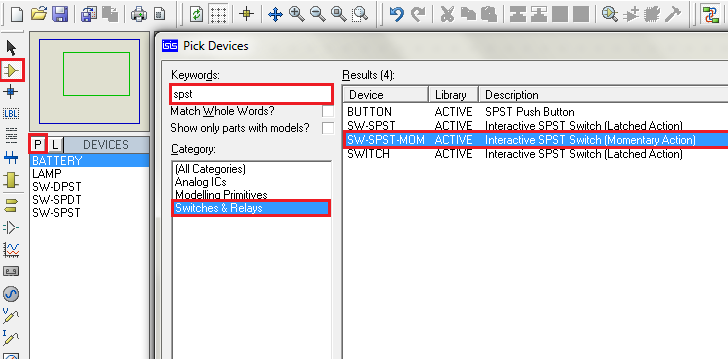
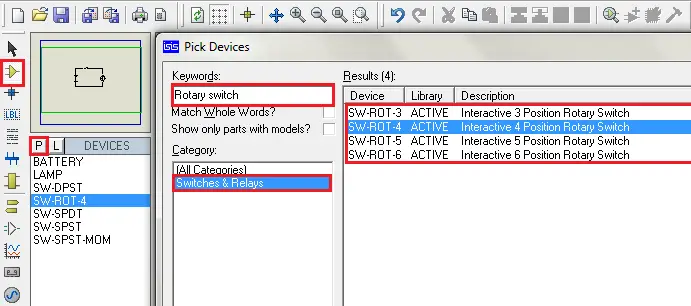
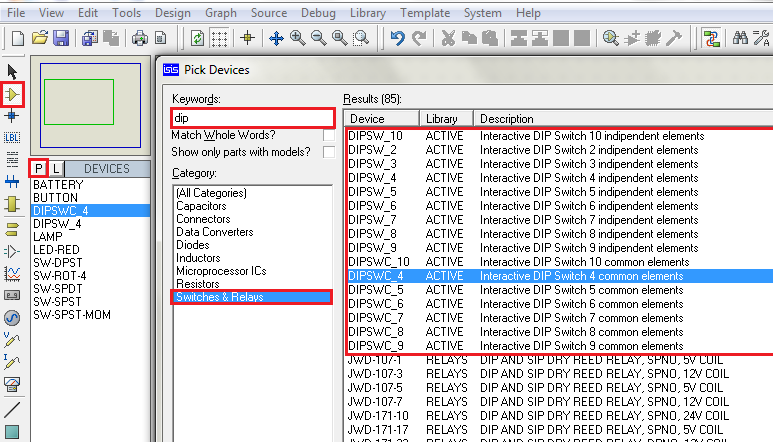
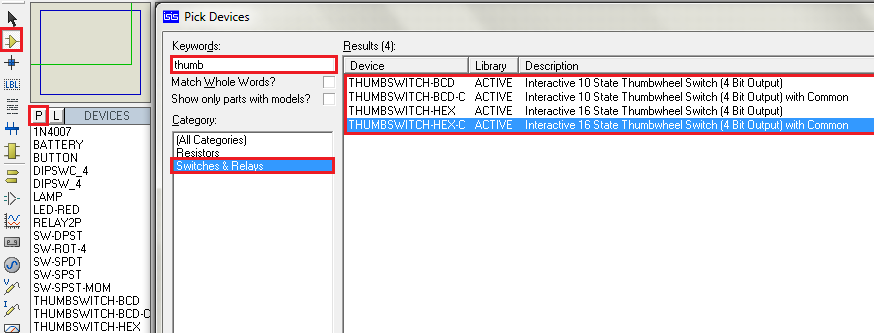
Switches can be found in proteus software under Library category “Switches and Relays”. Remember to select ‘ACTIVE’ components so that the simulator provides real time interface during Simulation.

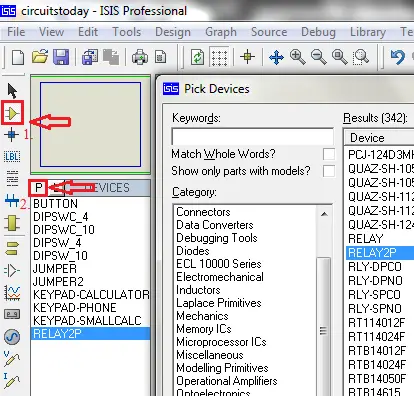
Step 1: Select component mode

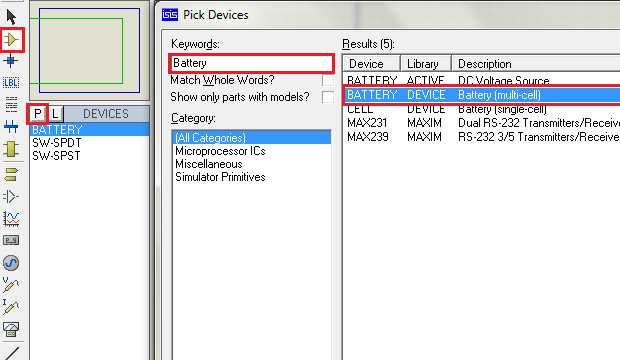
Step 2: Click on Pick devices ‘P’ to select switches category from the library

Proteus - Selection of Component Mode

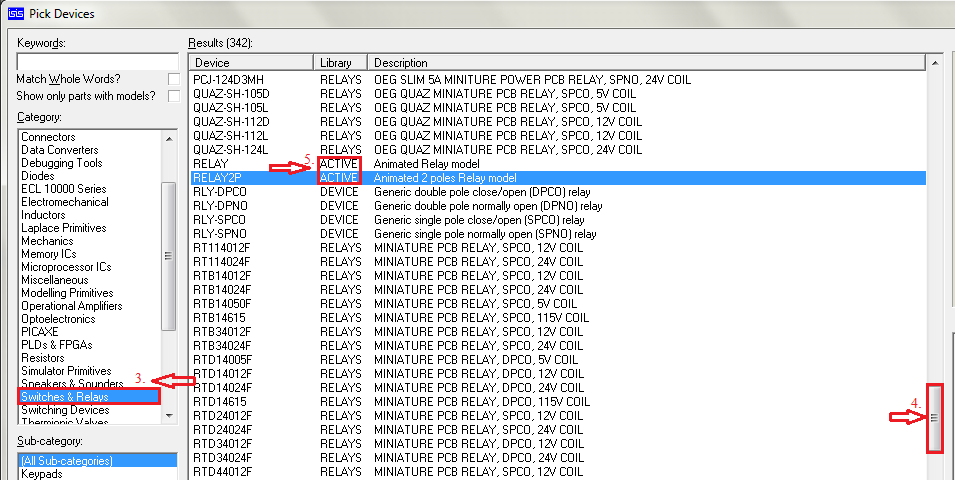
Step 3: Scroll down categories to find ‘Switches and Relays’. Select this category and it shows the available switches in the result.
Step 4: Scroll to find the required component according to circuit.
Step 5: Remember to select components with ACTIVE property under Library column of the search results for interactive simulation.

Selection of ACTIVE type of component

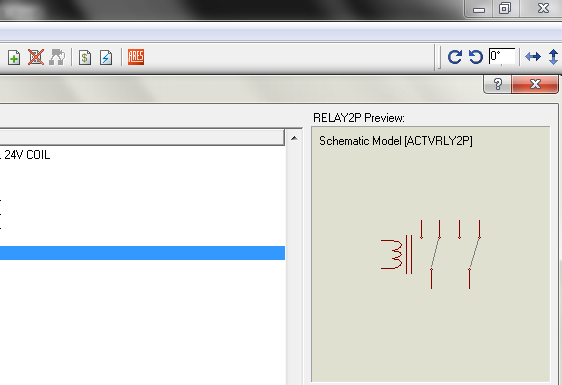
Search results show the preview of the component selected for instant reference. 

Preview option of the component

Viewing in power rating point of view, basically switches can be classified as signal switches, used to give input to the control unit generally up to 24V DC with current of the order of 10 mA and power switches used to control the state of a load generally 115V AC, 230 V AC etc, depending on load requirement with current ranging from 100 mA to several Amps.

This chapter is dedicated to introduce the switches available in proteus and are explained through practical applications.

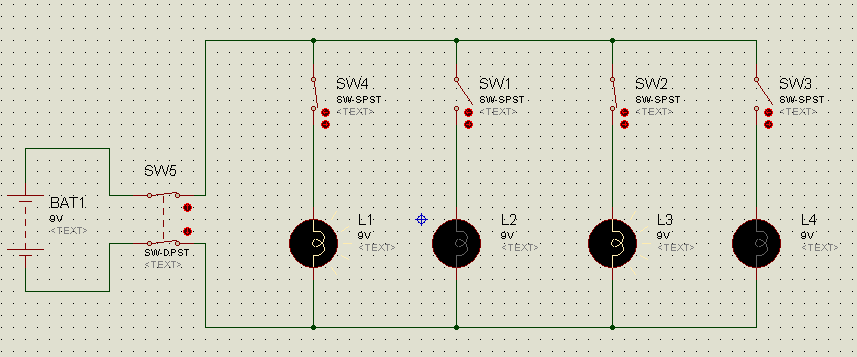
1.3 Switch board connections-House wiring

For controlling domestic loads

SPST: Single-Pole Single-Throw switches are used and for stair case light (load) control type.

SPDT: Single-Pole Double-Throw also called as Two way switches are used.

Applications in which two independent paths to be connected or disconnected by one point input uses:

DPST: Double-Pole Single-Throw type of switches, generally to separate both supply terminals from Load (Phase and Neutral in an AC Supply system) generally called as M.C.B

The simulation circuit shown here uses DC source to feed the lamp loads. However, same circuit is applicable for other voltage sources (Alternating Current Source).For beginners, this circuit can be safely connected and tested using a bread board to understand the operation of switches through hands-on experience.

For beginners who are trying to implement practically in homes, please take safety precautions and cross-check the conductor ampacity, load ratings, switch ratings that are used.

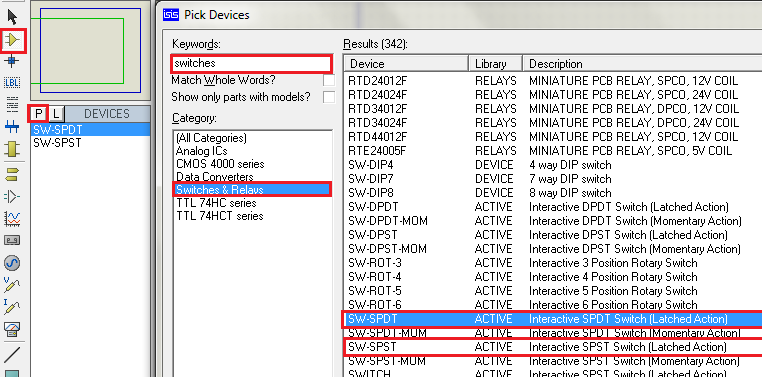
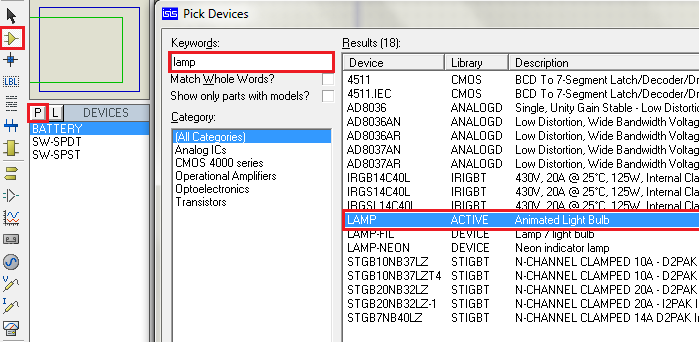
As described in section 1.2 select the switches mentioned above. Also select a Battery, Lamp from libraries ‘SOURCES’ and ‘Optoelectronics’ respectively.

Selection of switches for switchboard connections example

Selection of Battery for switchboard connections example

Selection of Lamp for switchboard connections example

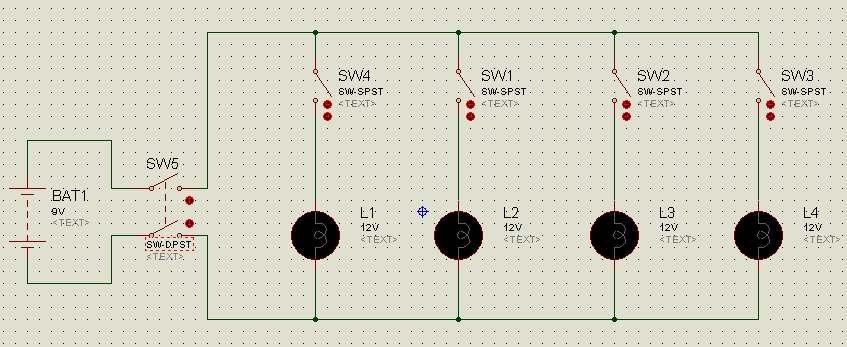
Place the components in work space and connect the components as per circuit diagram. To have a review on how to connect components go through the creating a new design chapter. Right-click on the component and select the orientation of the component if required.

Circuit diagram for switch board connections example

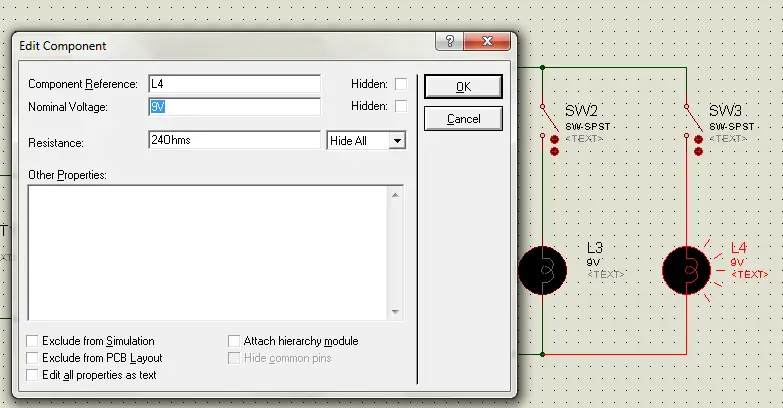
Double-click on the Lamp component and edit the voltage to 9V and click ‘OK’ as we are using 9V battery and it is easily available.

Edit Lamp voltage to 9V

Now, check the connections and properties of the components and Run simulation by clicking on Play button at the bottom left. Operate the DPST by clicking on switch lever. Then close the load switches one-by-one and the lamps will glow.

Simulation of the example

1.4 Two-way switch connections

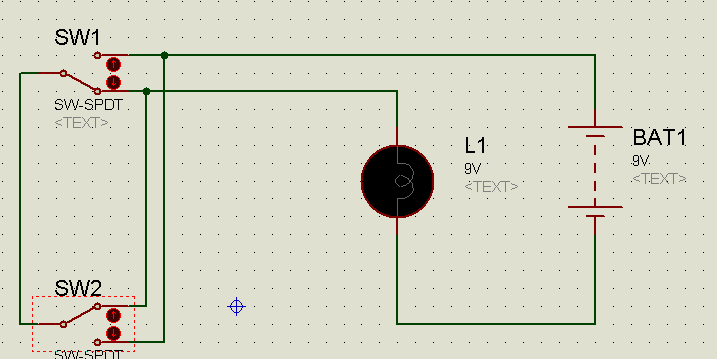
This kind of switches are mainly used in stair case lighting. Select a SPDT: Single-Pole Double-Throw switch in the way similar to SPST in above example. Connect the circuit as per the diagram.

Stair case lighting connection diagram

Change the voltage property of Lamp to 9V and run the simulation .Operate either of the switches to toggle the state of the lamp irrespective of the state of other switch. The lamp toggles from its state thus providing option to control the light from different floors.

Simulation of Stair case lighting

1.5 Latched and momentary action of switches

Just like Doorbell switches push to ON type of switches are available in Proteus. In domestic applications they are used as doorbell switches, whereas in industries they are used as Start and Stop switches in various control panel wirings like relay latching, for example a Motor starter.  These switches are in ‘Switches and Relays’ library with a description of Momentary Action.

Momentary Action Switch selection

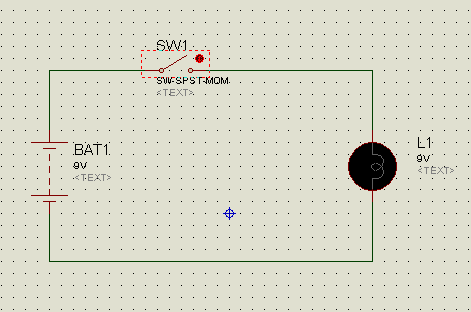
Connect the circuit as per the diagram and run the simulation. Operate the switch for the bulb to glow and release to OFF the bulb.

Circuit diagram for Momentary Action switch

Simulation of Momentary Action switch example.

1.6 Rotary Switches

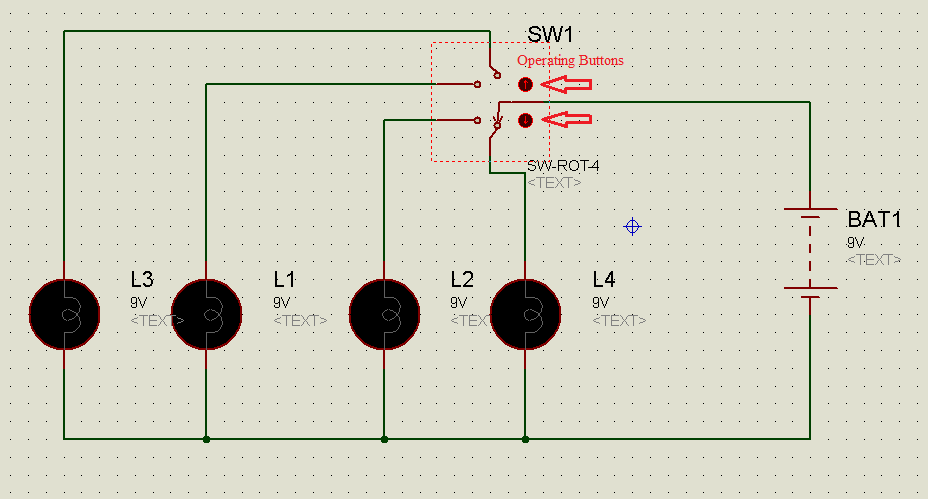
Fan speed regulators and frequency tuning circuits use rotary switches. They provide provision for common terminal to connect with more than one terminal independently.

Selection of rotary switch

This circuit shows basic operation of rotary switch even though it has different applications. To explain with the topics covered so far connect the circuit as per the diagram and operate the switch.

Circuit diagram for Rotary switch example

Simulation of Rotary switch example.

1.7 Push Buttons

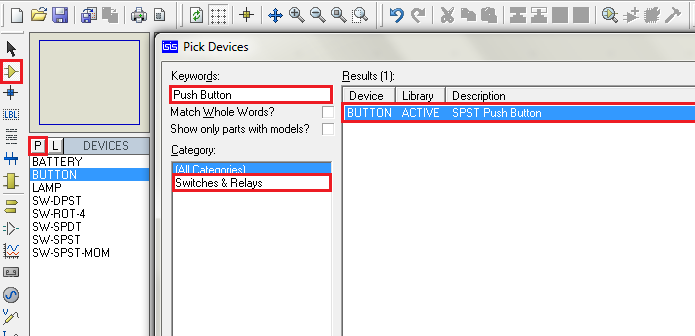
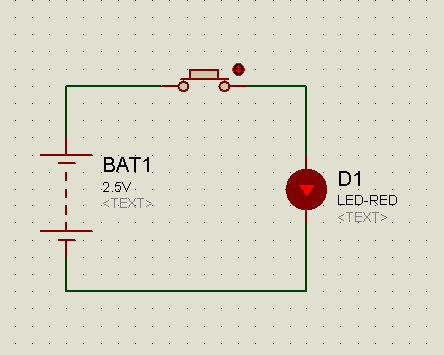
Human Machine Interface (HMI) control panels mostly use this type of push buttons. They are called as membrane switches. All the keypad type mobile phones also use membrane type push buttons. Digital clocks, watches, alarms, most of the electronic gadgets that provide Human Interface use this switches. To select this switch, type ‘Push Button ’in keywords. Also select active LED for this example. Connect the circuit as per the diagram and run the simulation. Operate the switch for the LED to glow.

Circuit diagram for Push Button example

Simulation of Push button example

1.8 DIP Sliding Switches

DIP stands for Dual In Line Package. This is a type of component package. These switches are generally used for selection of mode of operation of an equipment or selection of a process or control circuits which require variable reference inputs before they are powered ON or sometimes even after powering ON. They may not be operated frequently, so designed to embed in the control circuit to occupy less space.

Selection of DIP switches

Depending on reference input requirement they are available in two types.

(i)Common element

(ii)Independent Elements

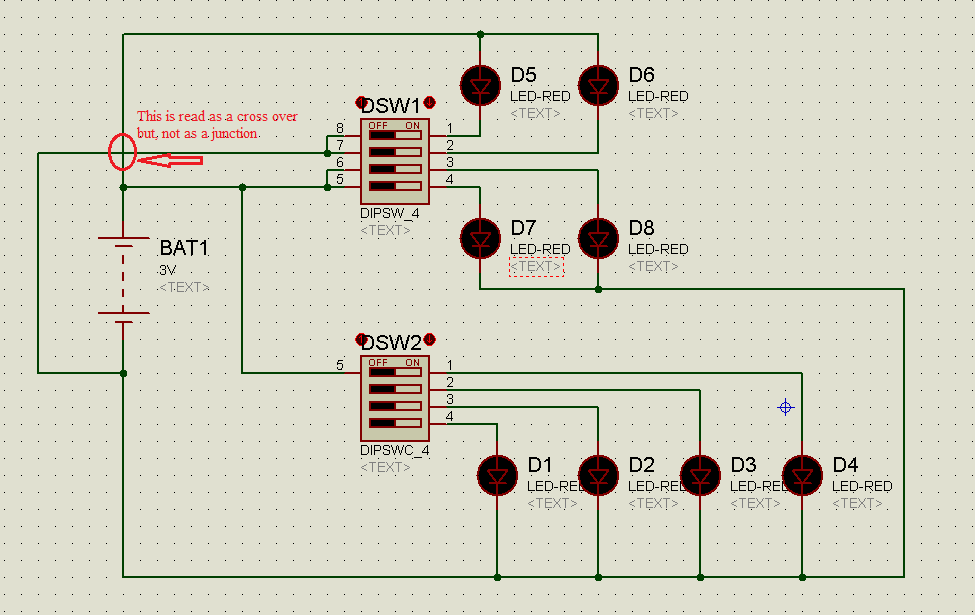
Circuit diagram of DIP switches Example

Connect the circuit as per the diagram and run the simulation.

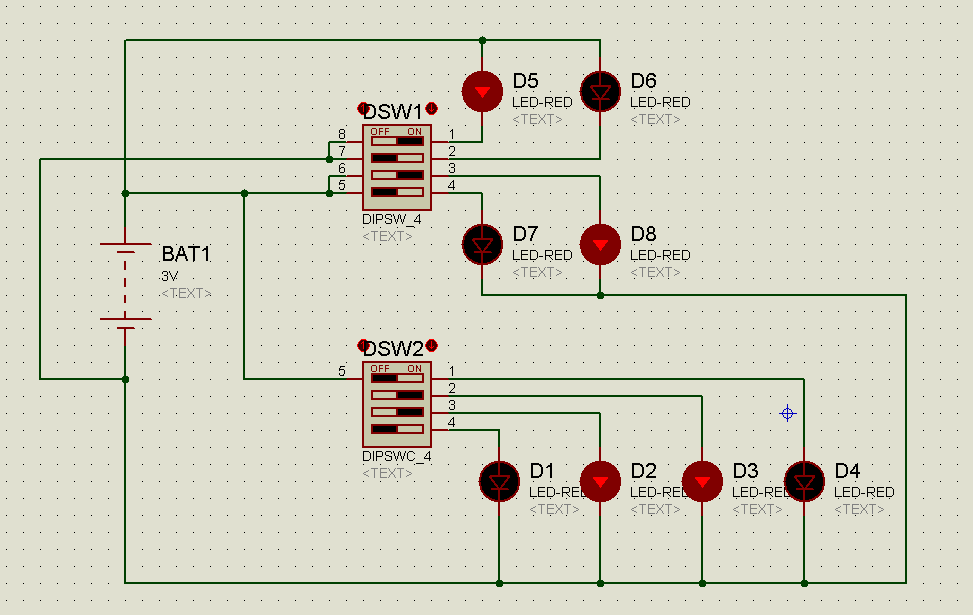
DIP Switch 1 is independent element type.D5,D6  are common  +Ve and  D7,D8  are common –Ve,  thus the switch provides option of connecting different voltage signals, whereas DIP Switch 2 is common element type, so all the cathodes of LEDs are made as common.

Simulation of DIP switches Example

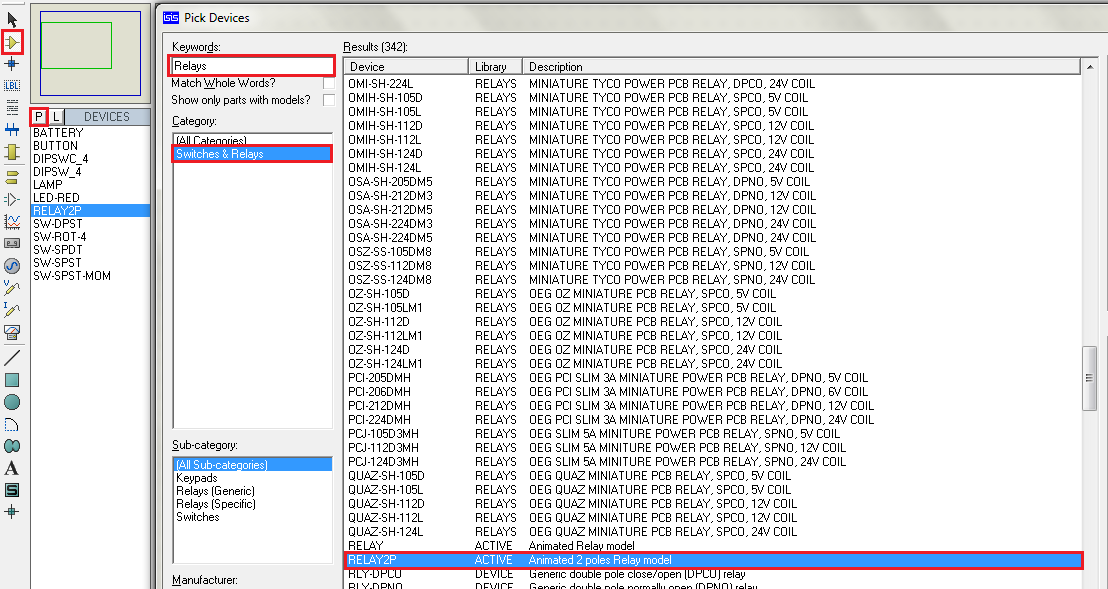
 1.9 Relays

Relay is an Electromagnetic/Electromechanical switch operated by a control signal generated by a control circuit or signal given by human. It is generally used in circuits where automatic switching is required depending on the real-time scenario. Example of UPS for computers is easily understood.

The switching sounds heard, when power cut occurs, is made by relays. Also, auto changing of home inverters from Mains to inverter and vice versa.

Selection of relay

 As an example Relay latching technique is presented as which is mentioned in the Momentary action of switches topic.

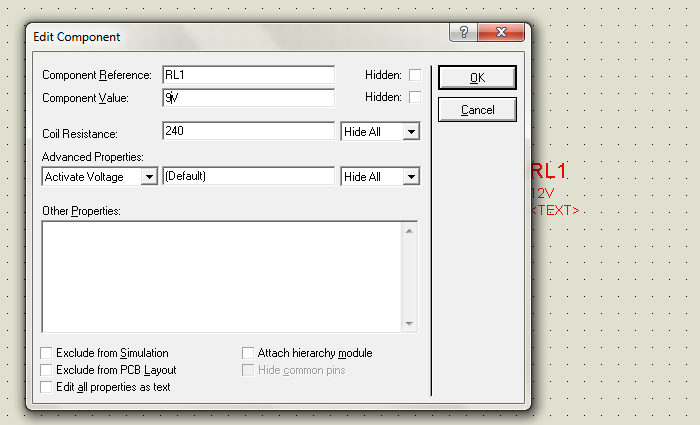
Editing Properties of relay, voltage of relay to 9V

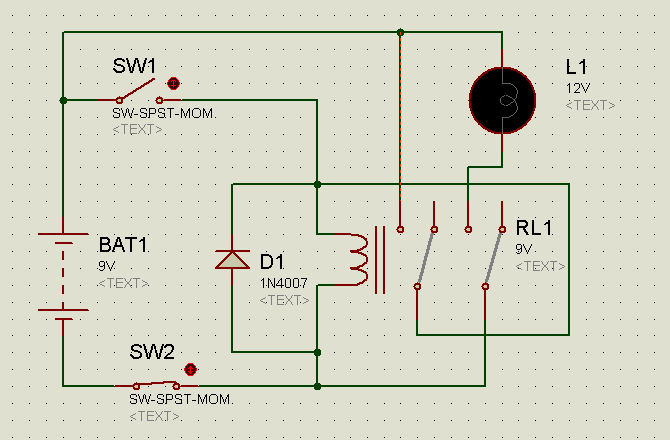
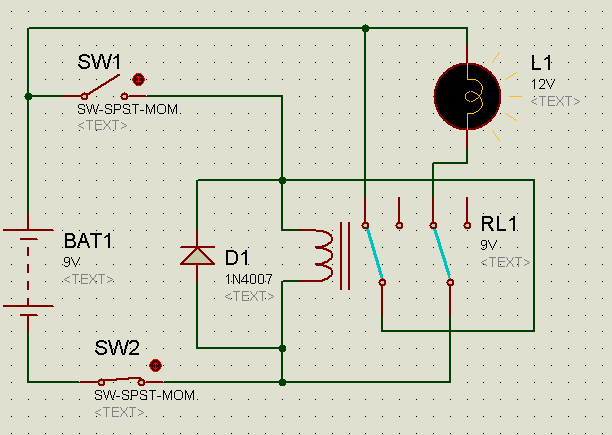
The stop switch SW2 should be latched to close position before starting the simulation. Connect the circuit as per the circuit diagram and run the simulation. Momentarily close the SW1 to Latch the relay. The relay remains in ON state even after releasing the SW1. Then open SW2 to Off the relay. This is generally used in Pump motor starter circuits.

Circuit diagram of Relay latching

Simulation of relay latching

The inductance property of the relay generates high opposite voltage across its terminals when it

is turned  OFF, so a free-wheeling diode is place in anti-parallel fashion to it.

1.10  Matrix Keypad

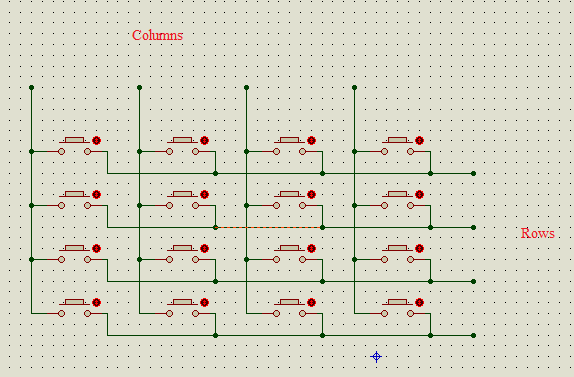
A number of Push buttons arranged in rows and columns form a matrix keypad. A microcontroller is employed to operate it easily.

Internal connections of matrix keypad

1.11 Thumbwheel Switches

These are rotating type digital switches and give output in binary format. They can be used in applications where set points are to be set by the user like alarms or clocks or temperature settings etc..,They replace the push buttons for ease of operation to the user.

Selection of thumbwheel switch

A microcontroller is required to read the output. A simple alternate circuit is presented for now, using BCD-Seven segment decoder IC 7448.


How Africa’s Tech Generation Is Changing the Continent

One day in 2004, in the Kenyan farming village of Engineer—so named because an Englishman once ran a mechanical repair shop there—a slight and nearsighted boy was walking past the only printing shop when his eyes fell on something he had never seen: a computer.

The boy watched as the owner stabbed at his keyboard. Edging closer, he saw pages spew out of a printer. Standing beside the humming machine, the boy stared mesmerized at the words and numbers that had somehow been transmitted from the computer. Almost a teenager, Peter Kariuki had discovered his destiny.

His parents, subsistence farmers of cabbages and potatoes, began to worry that Peter was spending too much time at the printing shop. No one in Engineer had access to the Internet. Few even had electricity. Tech booms were a faraway notion, and talk of random scrawny, bespectacled kids inventing hardware or writing code and cashing out in their 30s had yet to reach Engineer. Regardless, Peter was hooked. When his superb grades in primary school qualified him to attend the prestigious Maseno School (whose alumni include Barack Obama’s father), a teacher gave Peter the keys to the computer science lab, where he could code all night long.

Technology is just a tool. In terms of getting the kids working together and motivating them, the teacher is the most important.
Bill Gates

africa-tech-revolution-coding-technology-computers-apps-10.adapt.1190.1

“I see this all the time,” sighed the doctor as he proceeded to stitch up Kariuki, who managed a smile. His marketing analysis for SafeMotos was now complete.

Today the Rwandan start-up initially funded with $126,000 is the first and largest motorcycle ride–sharing company in Africa. It partners with more than 400 licensed and painstakingly monitored motorcycle-taxi drivers in Kigali, who are likely to make 800,000 trips this year. Gross revenue for 2017 is projected to be $1.1 million. “My dream,” Kariuki told me recently on the rooftop balcony of one of Kigali’s many sparkling new hotels, “is to establish Kigali as our stronghold that no one can touch—and from there move into 10 other cities.”

The pride of Engineer belongs to a wave of digital entrepreneurs who aim to transform sub-Saharan Africa. Their emergence coincides with the ubiquity of mobile phones throughout the continent, as well as the arrival of high-speed Internet—which, as recently as a decade ago, was rare in most of Africa. During the past few years, tens of millions of dollars in venture capital has flowed from the West into such countries as Kenya, Rwanda, Nigeria, and South Africa. The result is a generation of innovators whose homegrown ideas could, in the manner of SafeMotos, improve the lives of their fellow Africans.

his development should not be surprising, despite the many political and socioeconomic travails bedeviling Africa’s overall progress. “On this planet only one continent is growing faster than all the others in population, and it’s likely to keep growing even faster,” says Steve Mutabazi, a chief strategist with the Rwanda Development Board. “I’ve watched Asian countries enviously, and one thing is clear: When you have a developing region with enough members developing an ecosystem, it generates incredible momentum for investment in that region.” Africa, Mutabazi adds, “is at that point now.”

View Images

INVESTING IN THE FUTURE, Rwanda has pledged to educate students about the digital world, connect its citizens to the Internet, and build a knowledge-­based economy by 2020, a goal reflected in its 500-franc note.

Africa’s late arrival to the digital economy comes with certain competitive advantages. It benefits from advances and mistakes already made by Silicon Valley. Its population is younger than that of any other continent. Its marketplace amounts to a new frontier. Its largely untapped labor force presents an appealing prospect for tech-assembly plants. “Look at how China and India are competing in the electronics market,” says Bitange Ndemo, Kenya’s former permanent secretary at the Ministry of Information and Communications and now a professor of entrepreneurship at the University of Nairobi’s School of Business. “India is well on its way to becoming a global production center for electronic products. And how? By having so many young people with little to do that they can make things for next to nothing. What other continent can do that? Africa.”

It happens that Ndemo was one of the first Kenyans to promote his country’s tech potential with the nickname Silicon Savannah. Today he says the hype is warranted. Thanks to the mobile money-transferring innovation launched in 2007 by Kenya’s M-Pesa, Africans with a cell phone can deposit and withdraw cash at many shops without having to visit a bank or ATM. Mobile money transfers also are being used to pay for power from solar panels that off-grid-energy companies install on homes lacking electricity. Uber is a fact of life in urban East Africa, as are homegrown car-sharing competitors.


Create a website or blog at WordPress.com

Up ↑

Create your own website, free on WordPress.com.Create your own website.
Start free